Free AI outpainting
Sign in and use daily check-in credits to try canvas expansion at no upfront cost.
Expand your photo beyond its borders with AI — choose ratio and output size
Upload a photo, then choose target ratio and output size on the editor.
Drag & drop an image, paste with Ctrl+V, or long-press to paste on mobile
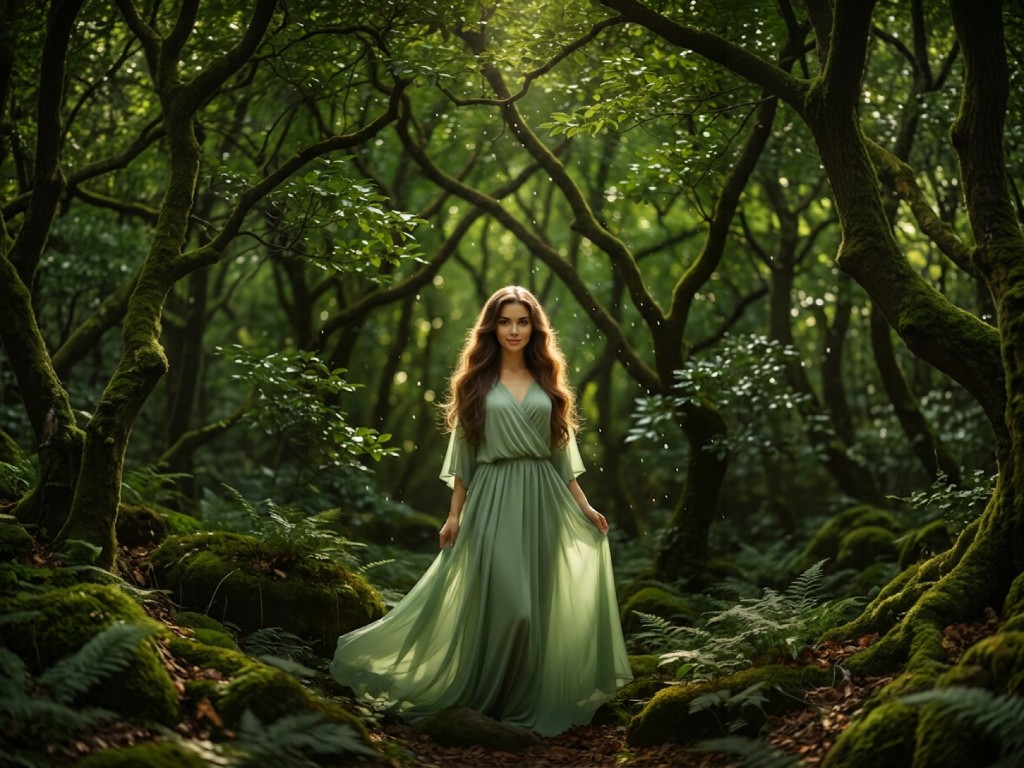
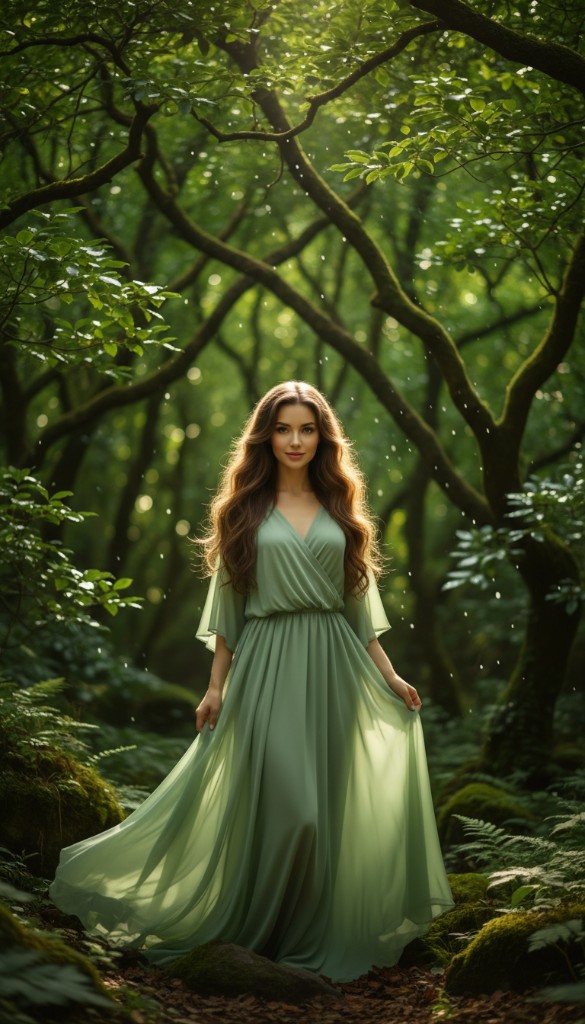
No software install — extend photos in your browser. Pick a target ratio and output size, then let AI fill the new canvas seamlessly.
Click "Upload image", drag a file into the area above, or paste with Ctrl + V. Supports JPG, PNG, WebP, AVIF up to 10MB.
On the editor page, select a target aspect ratio (1:1, 16:9, 9:16, etc.) and canvas dimensions. Preview shows where AI will expand.
AI outpainting continues the scene beyond the original frame — matching lighting, perspective, and texture at the edges.
Review before/after with the compare slider, then download the full-resolution expanded image.
Sign in and use daily check-in credits to try canvas expansion at no upfront cost.
Pick preset aspect ratios or enter custom width × height up to 4096px.
Upload, configure, expand, compare, download — all online with no install.
Use on phone, tablet, or desktop. Same workflow everywhere.
Outpainting expands a photo beyond its original frame. Backgroundcanvas fills the new canvas with AI so edges blend with the original scene.
Yes. Pick a target ratio and size, preview the expanded canvas, then download the HD result.
JPG, PNG, WebP, and AVIF—up to 10MB and 6000×6000 pixels per image. Upload from desktop or mobile browsers; no plug-in required.